Scheduled routines
Choose an agent, instructions and a time; inspect runs and missed-run behavior.
In this topic
- 01Instructions and agent→
- 02Configured time→
- 03Host runs the task→
- 04Review run history
Mellow must be available to run work. Missed runs follow the configured policy.
See the actual app · 2 screenshots
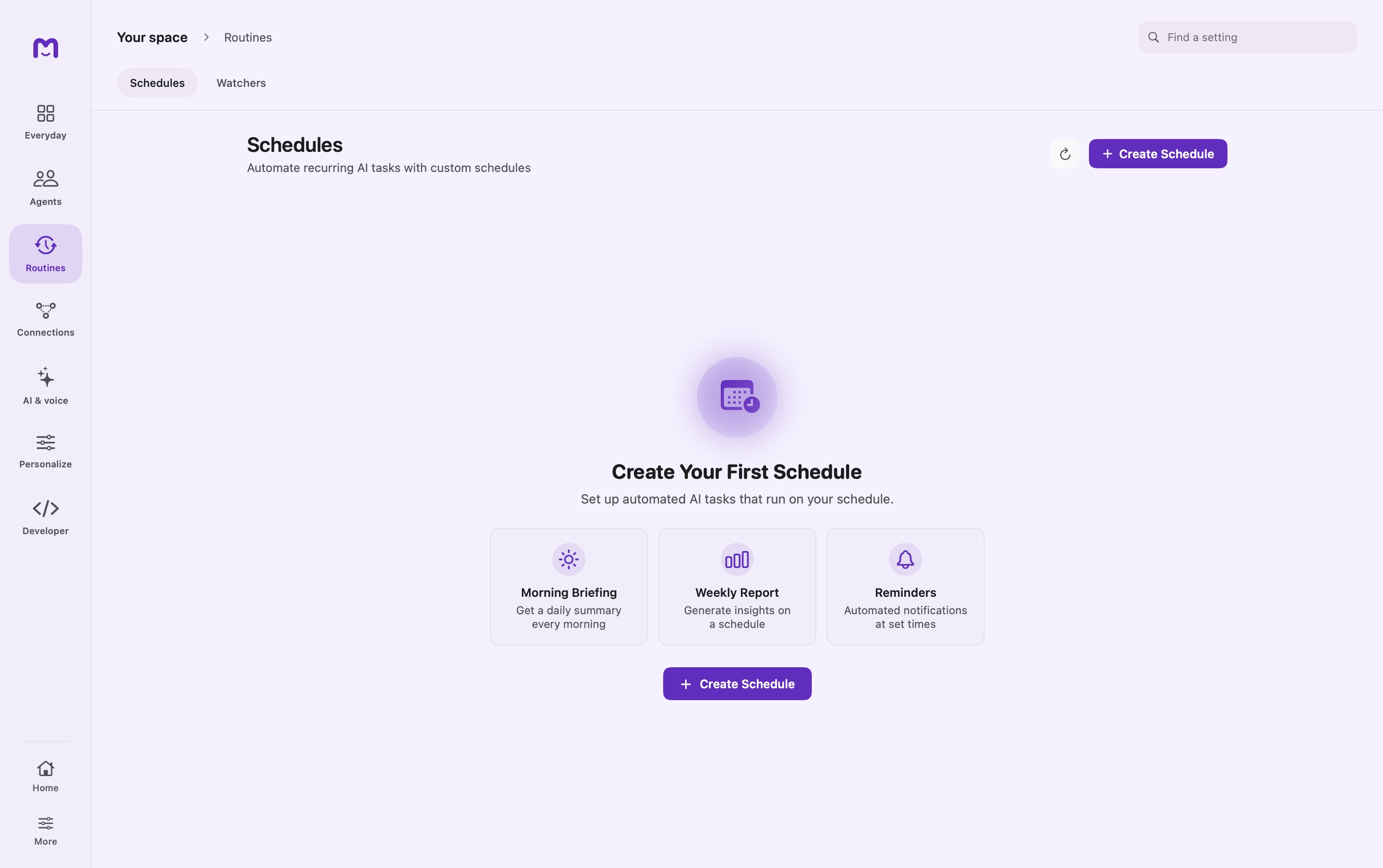
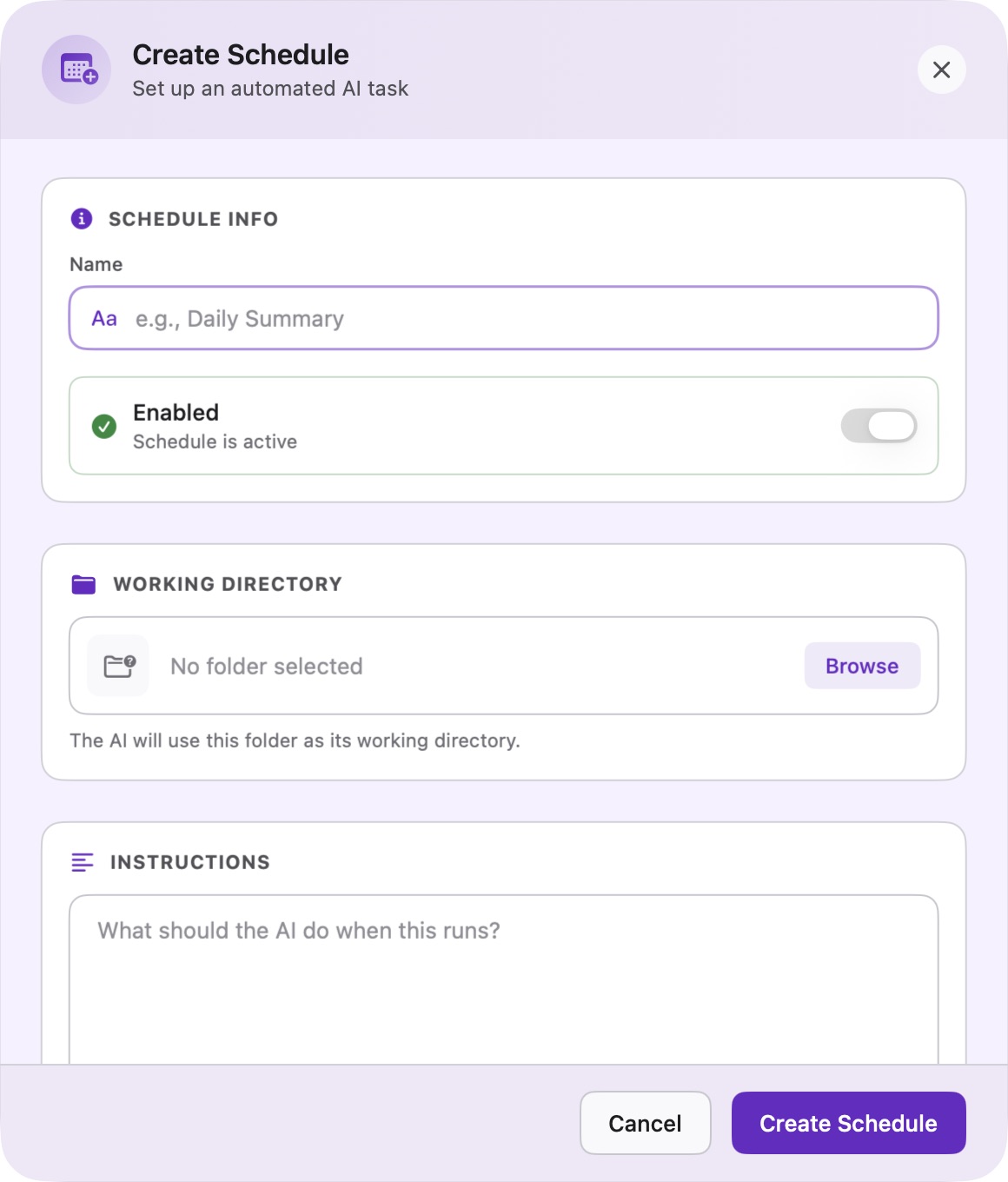
Schedules start an agent task at a chosen time. Use them for a regular review, a digest, or a one-time follow-up whose instructions are already clear. A schedule does not make an unavailable provider or sleeping host continuously available; the run still needs an executable target and the relevant access.
Define the result before the recurrence
First run the intended request in an ordinary conversation. Confirm the source, output, and permissions. Then create a schedule in Schedules using that tested brief.
Review the release-notes folder for changes since the last summary.
Write a dated draft with shipped changes and unresolved questions.
Do not publish it or message anyone. Include source filenames.
If the folder is unavailable, report that instead of producing a digest.
The instruction should explain what counts as success and what to do when an input is absent. “Check things every morning” leaves both unclear.
Create the schedule
- Choose Create Schedule and enter a recognizable name.
- Select the agent that should own the task.
- Enter the task instructions and optional working directory.
- Select a frequency and review the next-run preview.
- Save, then use Run Now to test the saved configuration.
- Open History and inspect the actual run result.
Frequency options
| Choice | Configuration |
|---|---|
| Once | A single date and time |
| Minutes | An interval in minutes |
| Hourly | Minute within the hour |
| Daily | Hour and minute |
| Weekly | Weekday and time |
| Monthly | Day of month and time |
| Yearly | Month, day, and time |
| Cron Expression | A custom five-field schedule |
For example, 0 9 * * 1-5 represents weekday mornings at 09:00 under the scheduler's time interpretation. Inspect the displayed next run after changing system time or time zone. For dates that do not occur every month, rely on the preview rather than assuming a particular rollover.
Execution and folders
The selected agent brings its configured model and capabilities. A working directory gives the run a specific host folder; otherwise the agent's saved working folder may apply. A folder-backed run is different from Sandbox execution, so review the actual target before assigning a task that changes files.
A remote or shared target does its work where that target runs. Naming a local path in instructions does not transfer the folder to another machine. For remote work, arrange accessible inputs explicitly and inspect failures in history.
Missed and overlapping work
Mellow must be running for local scheduled execution. Missed intervals are coalesced rather than replayed as an unlimited backlog. Review the next-run value and history after waking the Mac or reopening the app.
Run Now is useful for testing; it should not be used repeatedly while a run is already active. If work routinely exceeds its interval, simplify the task or choose a slower frequency. A long-running process and a newly due trigger are not evidence that two complete results exist.
Operate the schedule
Pause a responsibility when it is temporarily unnecessary. Edit its instructions or timing when the expected result changes. Delete it when you no longer want that recurring trigger. Removing a trigger and deleting its historical conversations are separate operations.
Review saved runs periodically. Check whether inputs still exist, permissions remain appropriate, and the model or provider still works. A schedule can remain configured while its execution fails.
Diagnose a missed result
| Stage | Evidence to inspect |
|---|---|
| Trigger | Enabled state and next-run preview |
| Dispatch | Agent or remote target still exists and is reachable |
| Model | Readiness, sign-in, provider error |
| Inputs | Working directory and knowledge grants |
| Actions | Approval or tool error in the conversation |
| Output | Actual document, artifact, or result requested |
Use Watchers when a file change should trigger the task. Use self-scheduling when an agent should request its next bounded wake-up itself.
Continue exploring · Build your agent teamFolder-triggered routines →Turn relevant file changes into bounded, repeatable agent tasks.