Devices and Mobile
Pair a client with a host Mac and understand where its conversations and tools run.
In this topic
- 01Mobile or another Mac→
- 02Authorized connection→
- 03Mac running Mellow→
- 04Host conversation and tools
A device connection does not automatically synchronize files or grant Cloud workspace access.
See the actual app · 1 screenshot
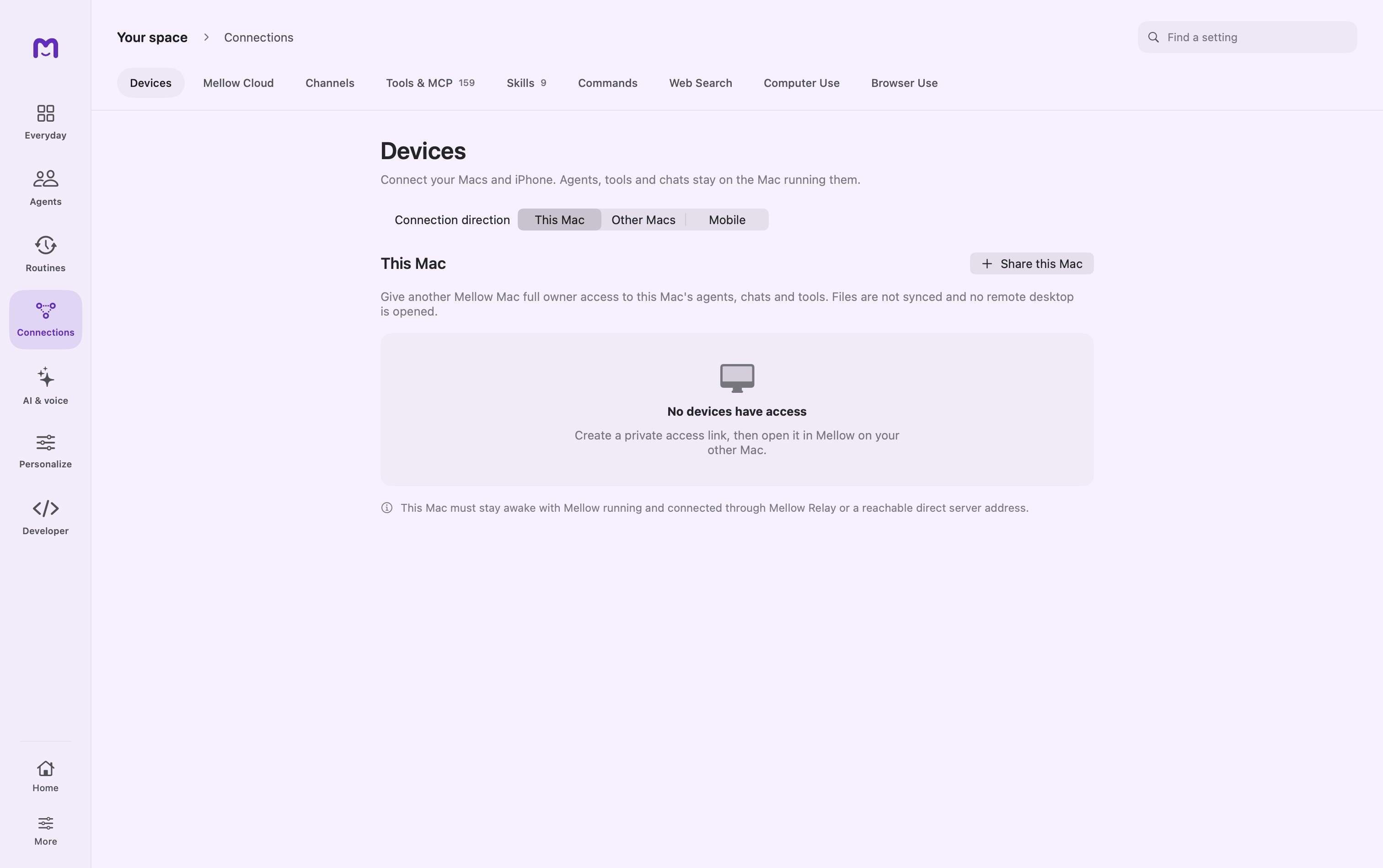
Mellow Mobile is a companion to Mellow on your Mac. The Mac remains the host for its agents, models, conversation history, and tools; the mobile app lets you reach that host, send a turn, and respond to supported approval requests. Keep Mellow running on the Mac for remote work.
Pair your mobile device
Open Devices on the Mac and find Mobile. Start pairing, then use the invitation shown by Mellow in the mobile app. Where a QR invitation is available, scanning transfers the connection details; manual pairing uses the displayed code and host address.
- Put both devices on a trusted local network and keep the Mac awake.
- Allow local-network access if the Mac is listening only on loopback.
- Generate a pairing invitation. Confirm local authentication when requested.
- Scan the invitation or enter the six-digit code in the mobile app.
- Check the paired device name on the Mac and send a short test message.
You do not need the phone's hardware MAC address or the Mac's recovery phrase. Discovery uses network service information; manual connection needs the Mac's reachable host address and port, not its Bluetooth address.
The code is valid for five minutes, is single-use, and is discarded after five failed attempts. Generate a new one after expiry. Pairing a new mobile device replaces the previous paired device in the current Mac pairing service. Its access grant lasts 90 days; pair again when renewal is needed.
Choose how the Mac remains reachable
| Control | Use it for | Limit |
|---|---|---|
| Reach From Anywhere | Connect through a public relay route when away from the local network | Requires configured relay service and an online host |
| Keep Mac Awake | Reduce interruptions caused by idle system sleep | Does not override an explicit sleep action or every lid-close condition |
| Continue Mobile Chats on This Mac | Bring a recently used mobile conversation back into the Mac workflow | Depends on host activity and conversation eligibility |
| Unpair | Revoke the mobile connection | The device must pair again to regain access |
First prove local pairing. Then test the remote route from another network. This separates a discovery problem from a relay problem.
Continue a conversation
Select the host and agent, open an existing conversation or create one, and send a message. Replies and tool activity come from the host. Model choices refer to models available to that Mac; the phone does not acquire those model files by pairing.
When the app offers an approval, inspect the actual operation and destination. A pending host approval is not a failed model response. Some operations remain restricted for remote callers, even when a local agent can perform them. Pairing does not remove those restrictions.
The host supports detached mobile runs so a short loss of connection does not necessarily stop ongoing work. On reconnect, the app can rejoin a run or reload the conversation. Check the current run state before resending an instruction that could produce a duplicate action.
Pairing, transport, and trust
The initial pairing exchange is local. The generated access grant is sealed to the mobile device. Subsequent requests use Mellow's Secure Channel over the local or relay route. The relay does not replace the Mac or keep its agents running while it is offline.
Pair on a network you trust and verify the resulting device name. An unexpected paired name is a reason to unpair immediately and begin again. A successful scan alone is not the identity check.
Troubleshooting by stage
No Mac appears. Confirm both devices are on the same reachable network. Guest Wi-Fi and office networks can isolate clients. Check local-network permission, server listening mode, host address, and port before regenerating codes.
The code is rejected. It may have expired, been used, or exhausted its attempt limit. Cancel the invitation and generate a fresh one.
It works at home but not away. Verify Reach From Anywhere, relay connectivity, and host wakefulness. Cloud workspace sign-in does not repair a device relay route.
A conversation pauses. Look for a pending approval or provider sign-in on the Mac. A connected phone does not supply missing provider credentials.
An old phone still appears. Use Unpair and confirm the row is removed. Do not only close the mobile app; that does not revoke its grant.
For another Mac, use the Mac connection controls in Devices. For server-hosted agents, use Cloud workspaces.
Continue exploring · Connect your workspaceCloud workspaces →Sign in to a workspace, discover permitted agents and track submitted cloud work.