Install and update
Prepare your Mac, install Mellow and check the build you are running.
In this topic
See the actual app · 1 screenshot
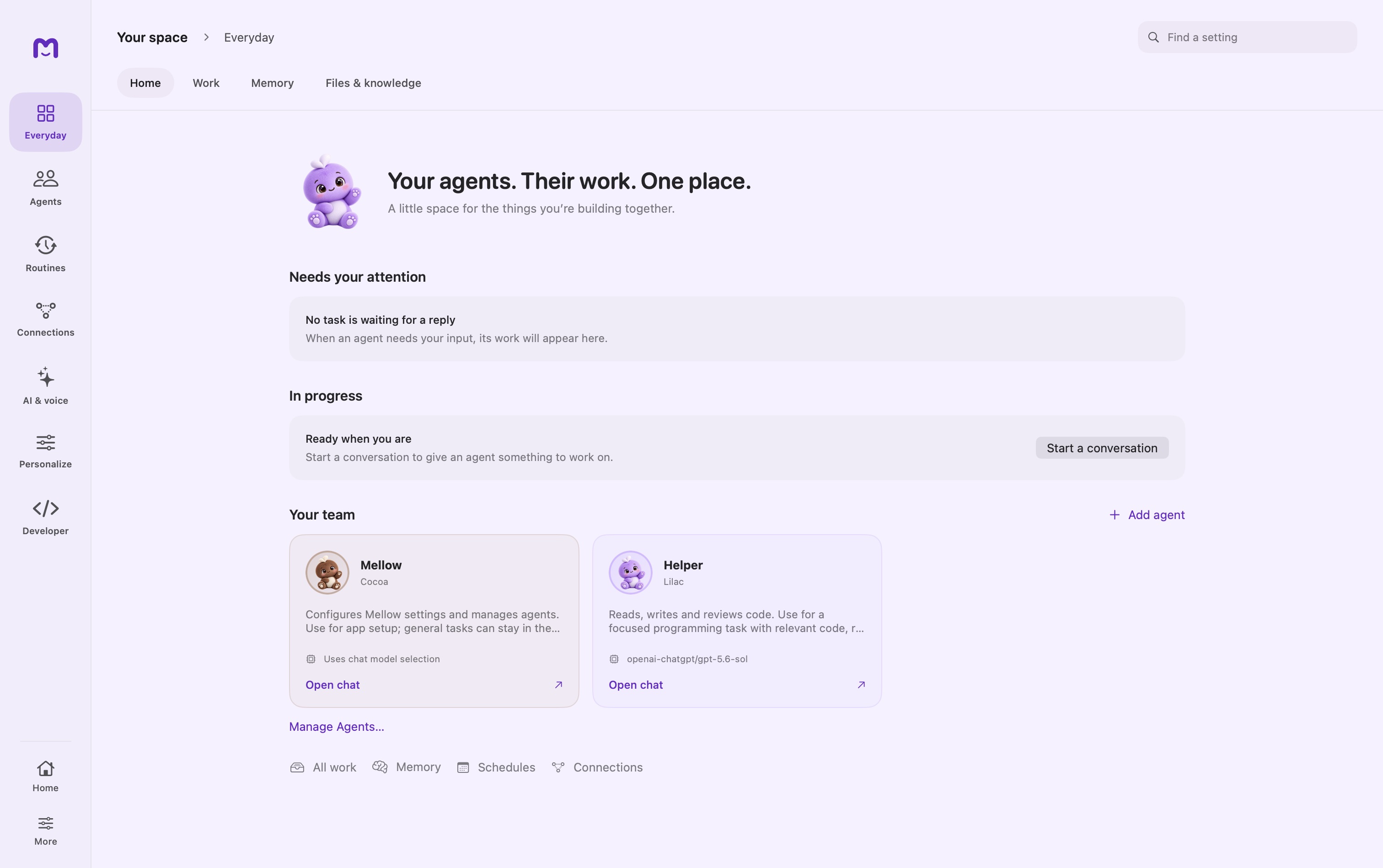
Install the desktop app first, then choose how it will run models. The application download and the model download are separate: installing Mellow does not make every model or connected service ready.
Before downloading
The current desktop download is for an Apple silicon Mac running macOS 15.5 or later. Keep enough free disk space for the app, the models you plan to download, and working files. Model size varies considerably; check each model's requirements before starting its download.
Windows, Linux, and Android packages are not interchangeable with the Mac installer. Use a platform only when a supported package is offered on the download page.
Install the application
- Open the Mellow product page and choose Get Mellow.
- Download the Mac disk image. The current preview is version 1.0.2 and is approximately 520 MB.
- Open the downloaded DMG and move Mellow into Applications.
- Launch Mellow from Applications. Complete any normal macOS first-open confirmation.
- Open a new chat and inspect the selected model before sending your first message.
Keep a single intended copy of the app in your normal Applications location. Launching an older test build can make settings, menu labels, and update behavior appear inconsistent.
Choose a model path
| Path | What you need | What to verify |
|---|---|---|
| Local model | A completed model download and enough memory | Model finishes loading and answers a short message |
| Connected provider | Valid credentials or a completed sign-in | The provider is enabled and the selected model responds |
| Apple Intelligence | A supported Mac and an available system model | The model reports ready on this machine |
A Cloud workspace sign-in is a separate connection. It should not be used as a substitute for configuring an ordinary model provider.
Grant permissions when needed
Start with chat. Enable microphone access when setting up voice, Accessibility when using features that control or type into other apps, and folder access when selecting a working folder. A green status in one feature does not establish readiness for another: speech recognition and text-to-speech, for example, use different model resources.
Updates
Use the app's update control when an update is offered. If you install a preview manually, quit the old running copy before replacing it. Reopen the intended application and check its version. Download availability, successful installation, and a working provider connection are three different checks.
Do not delete your app data or Keychain entries as a routine update step. Those can contain the configuration and connections you intend to keep.
If installation or first launch stalls
| Symptom | Next check |
|---|---|
| DMG will not open | Confirm the download completed; download a fresh copy if it was interrupted |
| App opens but no answer arrives | Inspect model readiness and provider authentication |
| Local model fails to load | Check available memory, disk space, and the selected model's compatibility |
| Sign-in appears complete but app remains disconnected | Return to the app and inspect the connection result; browser consent alone is not completion |
| Voice does not work | Open Voice and verify microphone permission and the relevant model separately |
Continue with your first conversation. For recurring failures, record the app version, selected model, and exact error before changing configuration.
Continue exploring · Start with MellowYour first useful conversation →Choose an agent and a ready model, then complete a small task you can verify.