Your first useful conversation
Choose an agent and a ready model, then complete a small task you can verify.
In this topic
See the actual app · 1 screenshot
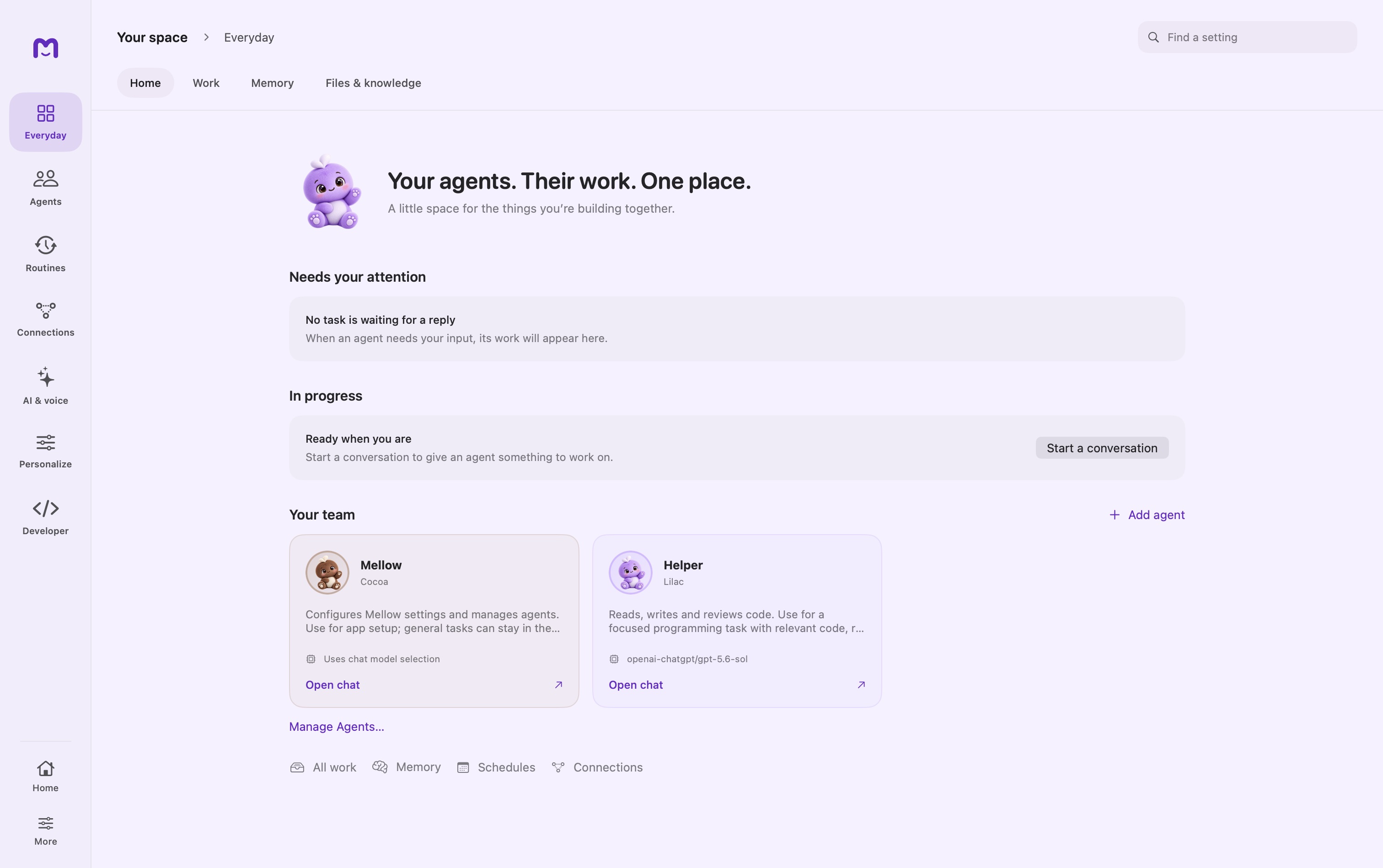
A good first test is small enough to inspect. Get one response, give Mellow a bounded piece of work, and verify the result before adding more capabilities.
1. Establish a working model
Open Mellow and start a new chat. Inspect the model selector: choose a downloaded local model or a provider you have signed into. Wait for readiness rather than treating the provider's presence in the list as a successful connection.
Send:
Explain what you can do in this conversation, and identify any tools or connections that are unavailable.
This is a useful orientation prompt, but the response is still generated text. Compare it with the actual enabled settings. If even an ordinary message fails, resolve model loading or sign-in before testing file access.
2. Give the work a home
For a one-off question, an ordinary chat is enough. For a continuing topic, create a project and add a short instruction such as:
This project prepares our October product notes. Use plain language, preserve technical qualifications, and separate shipped behavior from planned work.
Add only the knowledge collections that belong to that project. Choose a working folder if you want new project chats to start with files in a particular location.
3. Select an agent for hands-on work
The built-in Mellow coordinator helps inspect configuration and delegate. A custom agent performs specialist work with its own capabilities. Create one in the agents area, choose a ready model, and enable the tools needed for the task.
Use a temporary folder with a small text file for the first file test. Select that folder in the chat, then ask:
Read notes.txt and create summary.md in this folder.
Keep the source unchanged. Include decisions, open questions,
and a short next-actions list. Tell me which files you created.
Inspect any permission card before allowing the proposed action. When the run finishes, open summary.md and confirm that notes.txt is unchanged.
4. Inspect the evidence
A useful run leaves more than an answer. Look for the tool result, a file path or artifact card, and a summary that matches what actually happened. If a file was written but no card appears, ask the agent to share the result. A file on disk and an artifact displayed in chat are separate things.
Check the File Changes inspector when reviewing supported edits. Keep your normal backup or version-control workflow for important material.
5. Add one capability at a time
| Next need | Setup path | Small verification |
|---|---|---|
| Reference documents | Knowledge collection and agent/project grant | Ask for a fact and its source document |
| Voice input | Voice setup and microphone permission | Confirm recognized words appear in the intended field |
| Repeat a task | Schedule with the same tested agent | Use Run Now and inspect history |
| React to a folder | Watcher pointed at a test folder | Add one file and inspect the resulting run |
| Another Mac | Pair it in Devices | Confirm the host label and a reply from that host |
| Cloud task | Connect the intended Cloud workspace | Load a published agent, submit a small task, retrieve its result |
Keep the first workflow recoverable
Prefer a read or a new output file before testing a bulk edit. Make one configuration change between tests so you know what affected the result. Avoid starting schedules or watchers until the same instructions work in an attended conversation.
If a task fails, note the last successful stage: model reply, permission, tool invocation, external response, or output creation. That distinction is much more useful than “chat did not work.”
See Chat for conversation controls and Tasks and files for execution details.
Continue exploring · Start with MellowMellow vocabulary →A plain-language map of the concepts used throughout the app and this reference.